Cast to TV, Chromecast & Roku
- 4.5
- Rating
- 50.00M
- Installs
- Free
- Price
 Analysis by App-foxy
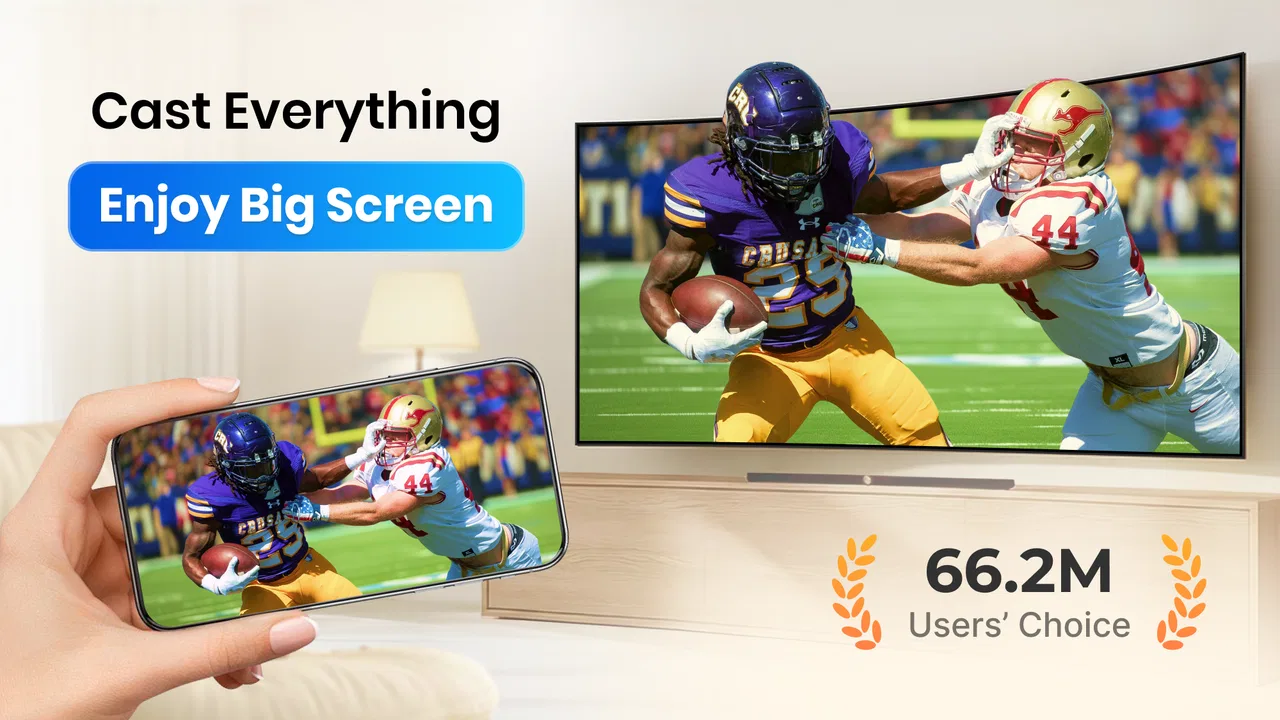
I opened Cast to TV, Chromecast & Roku expecting a straightforward way to move a video from my phone to a larger screen, and that is exactly where this app makes the most sense. It belongs to the video players and editors category, but I would not treat it as an editor or a replacement for a full media-center app. Its job is more focused: help me send movies, videos, and screen content from a mobile device to compatible living-room hardware such as Chromecast, Roku, Xbox, or a Smart TV.
That narrow purpose is also its main appeal. When a video is sitting on my phone and I want to watch it with other people, I would rather tap a cast control than pass the phone around or search for the same title again on a television app. In my experience, this kind of tool is most useful when the content already exists on the phone or when I want a simple bridge between mobile viewing and the TV. It is less convincing if I need advanced editing, a complete streaming catalog, or perfect compatibility with every device in the house.
From a phone video to the living-room screen
I start with the practical question behind this section: what needs to happen between finding a video on my phone and having everyone watch it on the living-room screen? Thinking through that handoff also helps set sensible expectations about speed, because the app is only one part of the route. Next, I look at the moments when the phone and receiver have more to manage at once.
You May Also Like

 Blood Strike: 2.5 Anniversary
Blood Strike’s Loadouts Turn Every Drop Into a Tactical Gamble
A close look at Blood Strike’s custom loadouts: how fast access to signature weapons reshapes its battle royale rhythm, rewards preparation, and narrows the gap between fights.

 Pandora - Music & Podcasts
Pandora’s Music Is Easy to Start, but Harder to Recover
Pandora’s strength is its low-effort path from a seed to a station. Its weak spot is how much confidence it asks you to place in connection, setup, and quiet recovery.

 8 Ball Pool
 Is Built on Rivalries, Rematches, and Routine
A close look at the rivalries, rematches, shared routines, and unanswered safety questions that turn a quick pool match into a persistent mobile community.

 Samsung Music
’s Quiet Strength Is Playing What You Already Own
Its reach comes less from spectacle than from dependable access to a personal library. That simplicity is both the app’s strongest retention engine and its ceiling.

 AccuWeather: Weather Radar
AccuWeather Review: A Quick, Clear Forecast for Everyday Decisions
For everyday plans, the best forecast is the one you can understand quickly. AccuWeather makes rain timing, radar, and local conditions easy to act on, with a few trade-offs.

 Hill Climb Racing
Why Hill Climb Racing Still Turns Crashes Into One More Run
A tiny car, a bumpy hill and one more upgrade: Hill Climb Racing keeps resurfacing because its simple chaos makes every near-miss feel personal.
More From Our News Desk



The starting condition matters more than the app screen
The first question I would ask before installing it is not whether the interface looks attractive. I would ask where my video is coming from and what television equipment I already own. The app is built around casting to devices, so the experience depends on having a compatible receiver available and ready to communicate with the phone. A Chromecast, Roku, Xbox, or Smart TV can turn the app into a useful remote viewing tool; without one of those destinations, its central purpose becomes much less relevant.
This is an important distinction from ordinary video players. A regular player is mainly concerned with opening a file and displaying it on the handset. Here, the phone acts more like the starting point in a chain: I choose content on the mobile device, select a destination, and then hand playback over to the larger screen. That handoff is convenient when it works, but it introduces another device and another connection that can affect the result.
I also like this approach for situations where the phone is only a controller. If I am showing a family video, reviewing a clip with colleagues, or putting a downloaded movie on the television for a quiet evening, I do not need a complicated production workflow. I need the app to find the screen, begin playback, and let me get back to enjoying the content. That practical focus is why I see it as a utility rather than an entertainment destination in its own right.
What I do before tapping cast
My best results come from preparing the room before opening the app. I turn on the television or receiver, make sure the intended input is selected, and keep the phone close enough to maintain a dependable connection during setup. I also check that the device I want to use is the one I actually intend to control. In a home with several screens, choosing the wrong living-room display can create unnecessary confusion, especially when names are similar.
Another useful habit is to decide whether I want ordinary casting or screen mirroring. These are not identical experiences. Casting generally sends the video to the receiver while the phone remains available as a controller. Mirroring reproduces the phone display, which can be helpful for content that does not offer a direct cast route, but it may also expose notifications, orientation changes, or other phone activity. For a film night, I prefer the cleanest handoff available; for demonstrating a mobile game or showing an app, mirroring may be the more suitable path.
The app’s store summary specifically positions it for movies, videos, screen mirroring, games, Chromecast, Roku, Xbox, and Smart TV use. I therefore judge it by how smoothly it connects those pieces rather than by whether it offers editing tools or a large library. That keeps expectations realistic and prevents a common mistake: installing a casting utility while expecting it to behave like a video production suite.
The step-by-step flow I would use
I begin by opening the app and looking for the available television or receiver. Once the target appears, I select it rather than immediately starting playback. This small pause is worthwhile because it confirms that the handoff is going to the right screen. If I am in a shared home, I would also ask others whether they are already using that device, since taking control of an active screen can interrupt someone else’s viewing.
Next, I choose the movie or video I want to watch. The most comfortable workflow is one where the phone helps me browse and start the content, then stays in my hand as a remote rather than remaining the main display. I keep the handset unlocked and nearby during the initial connection, because that makes it easier to recover if the receiver needs another tap or if I accidentally select the wrong destination.
For a game or an app demonstration, I approach the process differently. Screen mirroring is useful when the content is interactive and does not behave like a conventional video file. I would rotate the phone before beginning, close unrelated apps, and enable a quiet environment so that private notifications do not appear on the television. This is one of the less obvious trade-offs: mirroring expands what I can show, but it also mirrors everything that happens on the phone.
Once playback begins, I use the phone as the control point and avoid switching rapidly between several demanding tasks. A cast session is not the same as transferring a file permanently to the television. The phone, receiver, and home network still have to cooperate. If I am watching something important, I keep the phone charged and avoid moving away from the network setup that made the connection successful.
The handoff between phone, app, and screen
The handoff is where this app earns its place. A phone is excellent for finding content, but its small display and limited speakers are not ideal for a group. A television is better for shared viewing, while the phone remains a convenient controller. That division of labor feels natural when I am showing vacation footage, playing a family recording, or putting a video on screen while people sit across the room.
There is a second handoff that deserves attention: the transition from the app to the receiver. Depending on the content and destination, the receiver may handle playback differently from the phone. I do not assume that every video will behave identically across Chromecast, Roku, Xbox, and different Smart TV models. The app can provide the connection path, but the receiving hardware still influences how smoothly the video starts and continues.
For that reason, I prefer to test a short clip before starting a long group viewing session. This is a practical step that saves embarrassment. It lets me discover whether the chosen screen responds, whether the picture is framed correctly, and whether the audio is coming from the television rather than the handset. It also gives me time to change destinations without an audience waiting for the main video to begin.
When I mirror a game, the handoff is more fragile than with a normal video. The phone must keep drawing the game while the television reproduces the display, so I expect more sensitivity to movement, orientation, and connection quality. I would use this mode for casual group viewing or demonstration rather than for a competitive game where even small delays can affect control. That is a meaningful limitation, not a flaw unique to this app: mirroring adds convenience, but it cannot turn a living-room screen into a guaranteed low-latency gaming monitor.
A realistic evening workflow
Imagine I have a movie file on my phone and friends are visiting. Instead of crowding around the handset, I switch on the Smart TV, open the app, select the television, and choose the video. Before committing to the full film, I start a short section to confirm the picture and sound. Once the handoff is stable, I put the phone on the table but keep it within reach for pause and navigation.
If the television is already occupied, I can redirect the session to another compatible destination, such as a Chromecast or Roku device. That flexibility is more useful than it sounds in a real home, because the best screen is not always the nearest one. A child may be using one television, a partner may be watching another, or the main screen may be unavailable. Having several possible receivers can make the app a practical household tool rather than a single-purpose connection.
For a mobile game, I would prepare the phone differently. I would close conversations, rotate the display, and start mirroring only after checking that the correct screen is selected. Everyone can then see the action, but I would keep the session casual and accept that the phone remains the true input device. The television improves visibility for spectators; it does not necessarily improve control.
What the result feels like when everything cooperates
When the connection is successful, the outcome is pleasantly simple. The television becomes the shared viewing surface, while the phone handles selection and control. I do not need to duplicate the content manually on another device, and I can move from private mobile viewing to group viewing without rebuilding my entire setup.
That simplicity is especially valuable for people who already have compatible hardware but do not want to learn a complicated media server. The app gives that hardware a more direct role in a phone-centered workflow. I can start with a personal device, send the content outward, and let the larger screen do what it is best at: showing video to several people at once.
I also appreciate the distinction between a quick cast and a more involved setup. If I only want to show one clip, the app can be useful as a temporary bridge. If I plan to organize a large library, manage subtitles across many files, or maintain a permanent home theater system, I would look at a dedicated media-server solution instead. This app is strongest at the moment of connection, not at building an entire long-term media ecosystem.
Where the flow can break
The first weak point is compatibility. The app supports several important destinations, but “Smart TV” covers many different manufacturers and software environments. A connection that feels immediate on one television may require more patience on another. I would not buy new hardware solely on the assumption that every device will offer the same experience. The safest approach is to use it with equipment already known to work in the home and test the exact screen before relying on it for an event.
The second weak point is the network handoff. Casting is not magic; the phone and receiver need a path to communicate. If the television does not appear, I check the basics first: both devices are active, the intended receiver is selected, and the home connection is behaving normally. Restarting the app or receiver can sometimes be less frustrating than repeatedly tapping the same control. I keep this troubleshooting simple because the app is meant to reduce friction, not become a technical project.
Mirroring introduces its own compromises. Notifications, incoming calls, unexpected screen rotations, and battery use can all become more noticeable when the entire phone display is visible. I would not mirror sensitive conversations or personal dashboards in front of a group. For public demonstrations, I prepare the phone first and use a clean screen so that the television shows only what I intend.
There is also a difference between convenience and professional reliability. For a casual movie, a family clip, or a quick game demonstration, a small interruption may be acceptable. For a presentation where timing matters, a classroom session with strict privacy requirements, or a competitive gaming setup, I would prefer a wired connection or hardware designed specifically for that purpose. The app is a helpful wireless option, but I would not treat it as a guarantee against every delay or device-specific problem.
How it compares with the usual alternatives
The most obvious alternative is the cast button built directly into an individual streaming service. That route can be cleaner when I am watching content from that service because the app and receiver are designed around one catalog. Cast to TV, Chromecast & Roku becomes more appealing when my content is spread across different sources or when I want a broader bridge between the phone and several types of screen hardware.
A second alternative is the television’s own media player. Built-in TV software is convenient for content already stored on a USB drive or available through installed services, and it avoids using the phone as an intermediary. However, it may be slower for content that is already on my handset. This app is more attractive when the phone is where I naturally find and organize the video.
Screen-recording or editing apps solve a different problem altogether. They help create or modify content, while this app focuses on getting existing content onto a larger display. I would choose an editor when I need trimming, transitions, captions, or a finished export. I would choose this casting app when the video is ready and the real obstacle is the distance between the phone and the television.
A dedicated media-server application is the better choice for a large, carefully organized collection. It can offer more control over libraries and playback across a home network, but it usually requires more setup and maintenance. This app wins when I want a lighter workflow with fewer moving parts, provided my receiver and content cooperate.
Who should use it, and who should skip it
I would recommend it to someone who regularly keeps videos on a phone and owns a Chromecast, Roku, Xbox, or compatible Smart TV. It is also a sensible option for families that want to show personal clips on the big screen, travelers who return with phone-recorded footage, and casual players who want others to see a mobile game.
I would be more cautious recommending it to someone who only watches subscription streaming services. In that case, the official television or streaming-service app may be simpler and more dependable. I would also steer away from it for people seeking a full video editor, a permanent media library, or a professional presentation tool. The category label can make it sound broader than its practical role; its real value is the cast-and-mirror workflow.
Version, cost, and everyday value
The app is free, and its current version is 2.4.7.2. It is available for devices running Android 7.0 or later, which makes it accessible to many older Android phones as well as newer models. I would still keep the phone’s operating system and television software reasonably current, since compatibility problems often come from the wider device chain rather than from the casting screen alone.
Optional purchases range from $2.49 to $13.99 per item. That means I can try the basic experience without paying upfront, then decide whether the added value justifies spending money. I would make that decision only after testing the receiver I use most. A purchase cannot solve a television that is incompatible, a weak home connection, or a mirroring delay that is unacceptable for my particular use.
Its broad adoption is reflected in an average rating of 4.5 from around 476 thousand ratings, with over 50 million installs. I read those figures as evidence that the basic idea is useful to many people, not as a promise that every setup will behave identically. The developer is InShot Inc., and the app carries an Everyone content rating, which fits its practical role as a general-purpose casting utility.
My final take after following the whole workflow
Cast to TV, Chromecast & Roku works best when I treat it as a bridge: the phone supplies the starting content, the app manages the handoff, and the television provides the shared result. That workflow is easy to understand and genuinely convenient for everyday viewing, especially when content is already on the handset and compatible hardware is waiting in the room.
My advice is to test one short video, confirm the destination and audio, then decide whether the app fits your routine. Use normal casting for relaxed viewing whenever possible, reserve mirroring for games and phone demonstrations, and prepare the phone before exposing its screen to a group. Those small choices make the experience noticeably smoother.
I would recommend it as a practical free starting point for wireless phone-to-TV viewing, not as a universal replacement for dedicated streaming, editing, or home-theater tools. If your main need is to move personal videos or casual game visuals from Android to a Chromecast, Roku, Xbox, or Smart TV, it can remove an annoying gap between your pocket and your living room. If your priority is guaranteed latency, deep library management, or flawless support for every television, a more specialized alternative will be the better fit.
FAQs for Cast to TV, Chromecast & Roku
01What devices are compatible with Cast to TV, Chromecast & Roku?
Cast to TV is designed to work seamlessly with a variety of devices, including Chromecast, Roku, and most smart TVs. It supports casting from both Android and iOS devices. Ensure your device is connected to the same Wi-Fi network as your TV for optimal performance. Compatibility may vary slightly depending on software versions.
02How do I set up the app for the first time?
To set up Cast to TV, start by downloading the app from the Google Play Store or Apple App Store. Open the app and follow the on-screen instructions to connect it to your Chromecast, Roku, or smart TV. Make sure your mobile device and TV are on the same Wi-Fi network to facilitate easy connection.
03Are there any subscription fees or in-app purchases?
Cast to TV offers a free version with basic features. However, there may be in-app purchases or premium subscription options that unlock additional features, such as removing ads or accessing exclusive content formats. It's advisable to review the app's pricing details within the app or on the app store page.
04Can I cast content from all apps using Cast to TV?
While Cast to TV supports a wide range of apps, not all third-party apps may be compatible due to restrictions or technical limitations. Popular apps like YouTube, Netflix, and Spotify generally work well, but it's recommended to check the app's compatibility list or community forums for specific app support.
05What should I do if I experience connectivity issues?
If you encounter connectivity issues, first ensure that both your mobile device and TV are on the same Wi-Fi network. Restart both devices and try reconnecting. If problems persist, check for updates to the app or your device's software, and consider consulting the app's help section or customer support for further assistance.
Pros
- Simple interface
- easy to navigate.
- Supports multiple streaming devices.
- Quick setup and connection process.
- Wide range of compatible media formats.
- Regular updates enhance stability.
Cons
- Ads can be intrusive at times.
- Limited features in free version.
- Occasional lag in streaming.
- Requires strong Wi-Fi connection.
- Not compatible with all TV models.

Cast to TV, Chromecast & Roku
Gallery